01 · From PLC to Python
OPC UA lets an application access PLC data using names and types, without calculating memory addresses. The PLC acts as the server; our Python program will be the client. We will enable the server on a Siemens S7-1500 and read three variables from DB100 TestOPCUA: Bool1, Integer1 and Real1.
TestOPCUA→OPC UA
Laboratory channel→Python
Data reading
The connection is direct: no intermediate OPC server on Windows is required. OPC UA also supports subscriptions for notifications according to the configured sampling, publishing and filter settings. Here we will start with one read per second to understand the complete process.
02 · What you need before starting
- An S7-1500 with a compatible OPC UA server, suitable firmware and a purchased runtime licence.
- TIA Portal, access to the project and permission to download changes.
- A Windows 10 or 11 PC with network access to the PLC and Internet access to install Python and its libraries.
- The PLC’s IP address, the server port and a user account with OPC UA access.
The screenshots show a CPU 1516-3 PN/DP and firmware V4.0 options. Menus and permissions depend on the CPU, firmware and TIA Portal version. Siemens PLCs do not all provide the same features. Carry out your first test on a test bench; downloading hardware configuration may require a stop.
Example network: PLC 192.168.0.10 and PC 192.168.0.20, both with subnet mask 255.255.255.0. These are illustrative addresses: use your installation’s addresses and avoid duplicates. Set the correct date and time on both devices so that certificates are valid.
03 · Enable the server in TIA Portal
- Open Device configuration and select the CPU.
- Under Properties → General → OPC UA → Server → General, select Activate OPC UA server.
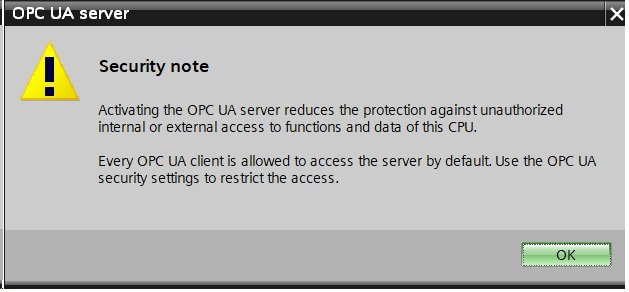
- Read the security notice. Enabling the server opens an additional access path that must be configured.
- Note the endpoint, including its IP address or hostname and port. We will use
opc.tcp://192.168.0.10:4840; check the actual setting in your project.
04 · Configure the secure channel and user
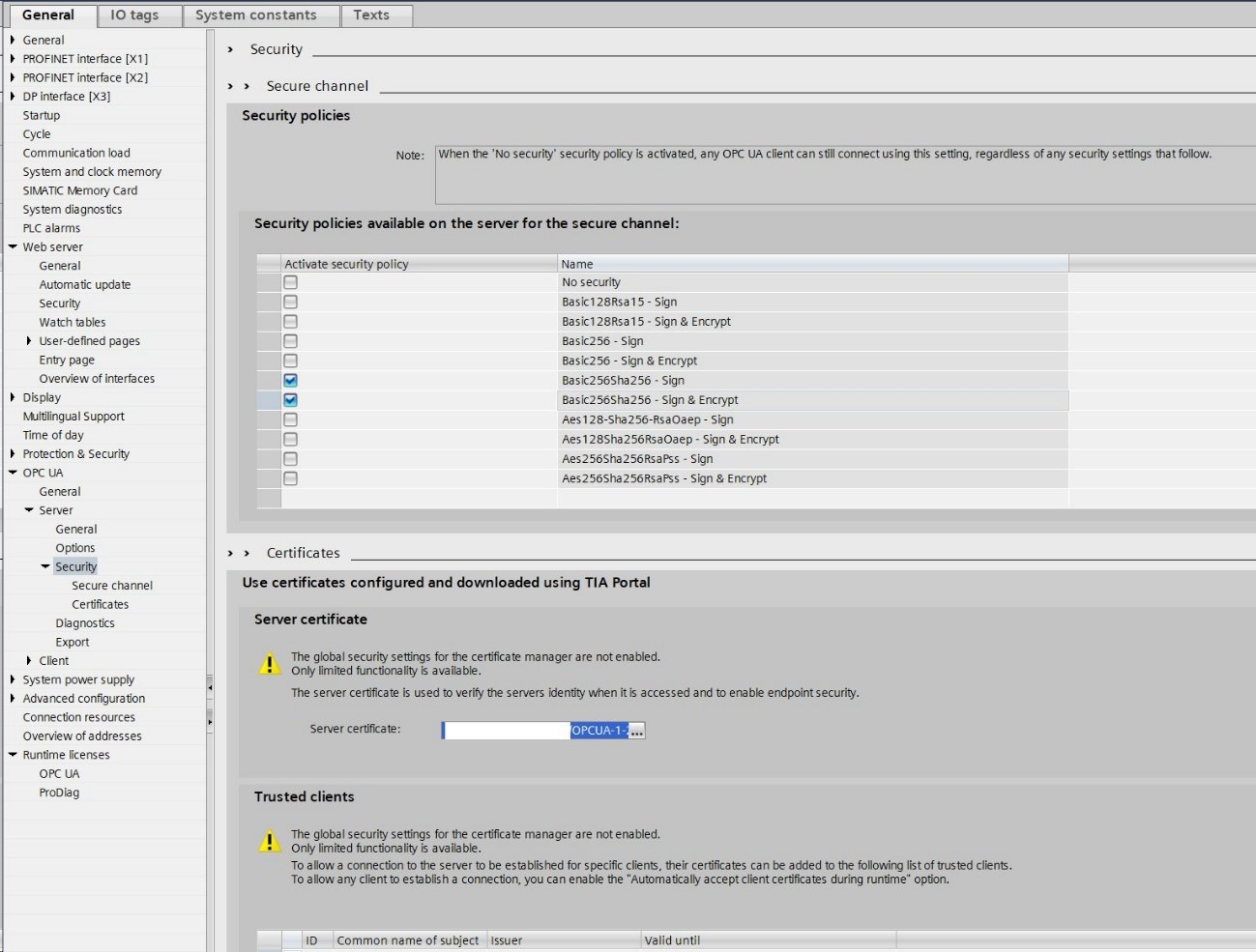
For this first test, on an isolated laboratory network, open OPC UA → Server → Security → Secure channel and enable No security (the None endpoint). The script does not configure a client certificate or sign or encrypt the channel. Keep username/password authentication enabled and disable anonymous access.
The original screenshot shows Basic256Sha256, a certificate-based configuration. The selection for this tutorial differs: select No security. You do not need to generate or import client certificates.
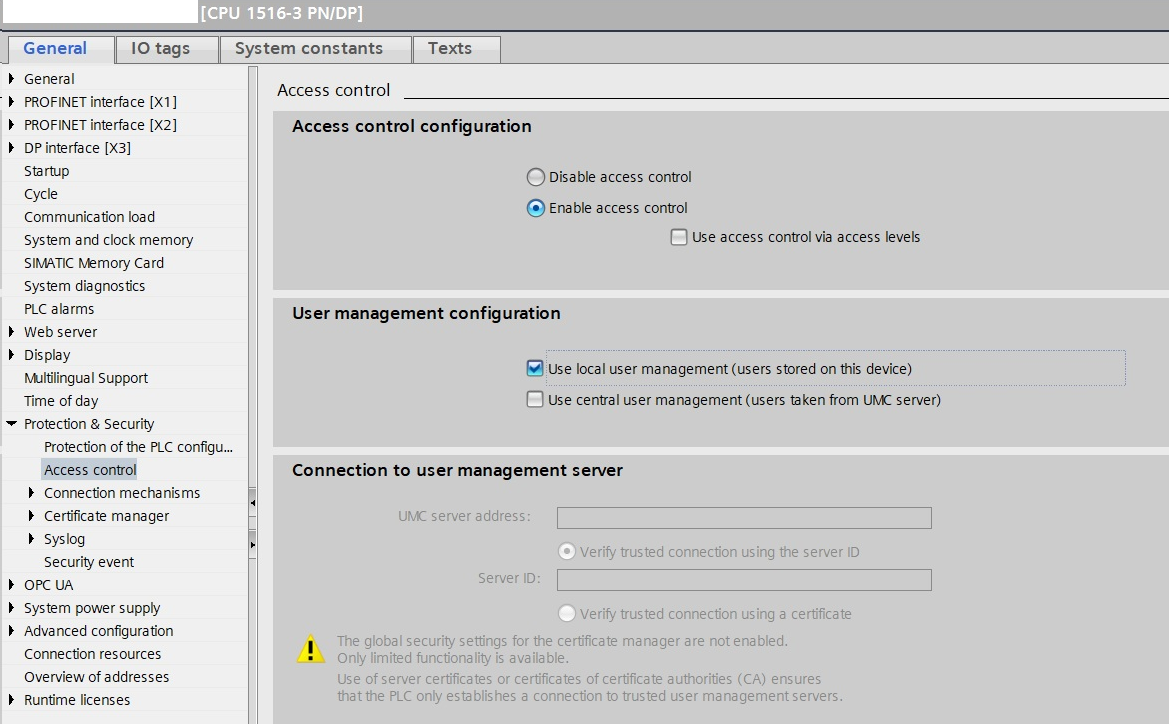
Under Protection & Security → Access control, enable access control and local user management.
- Open Security settings → Users and roles in the project.
- Create the
OPC UArole and grant the OPC UA server access runtime right. - Create the local user
OPCTest, set your own password and assign this role. - Disable guest or anonymous authentication on the server. The original screenshot shows an Anonymous user: do not grant it OPC UA access.
- If your version provides OPC UA → Server → General → Access control, enable it too. For versions with OPC UA roles, assign the user a role with read permission on the published variables.
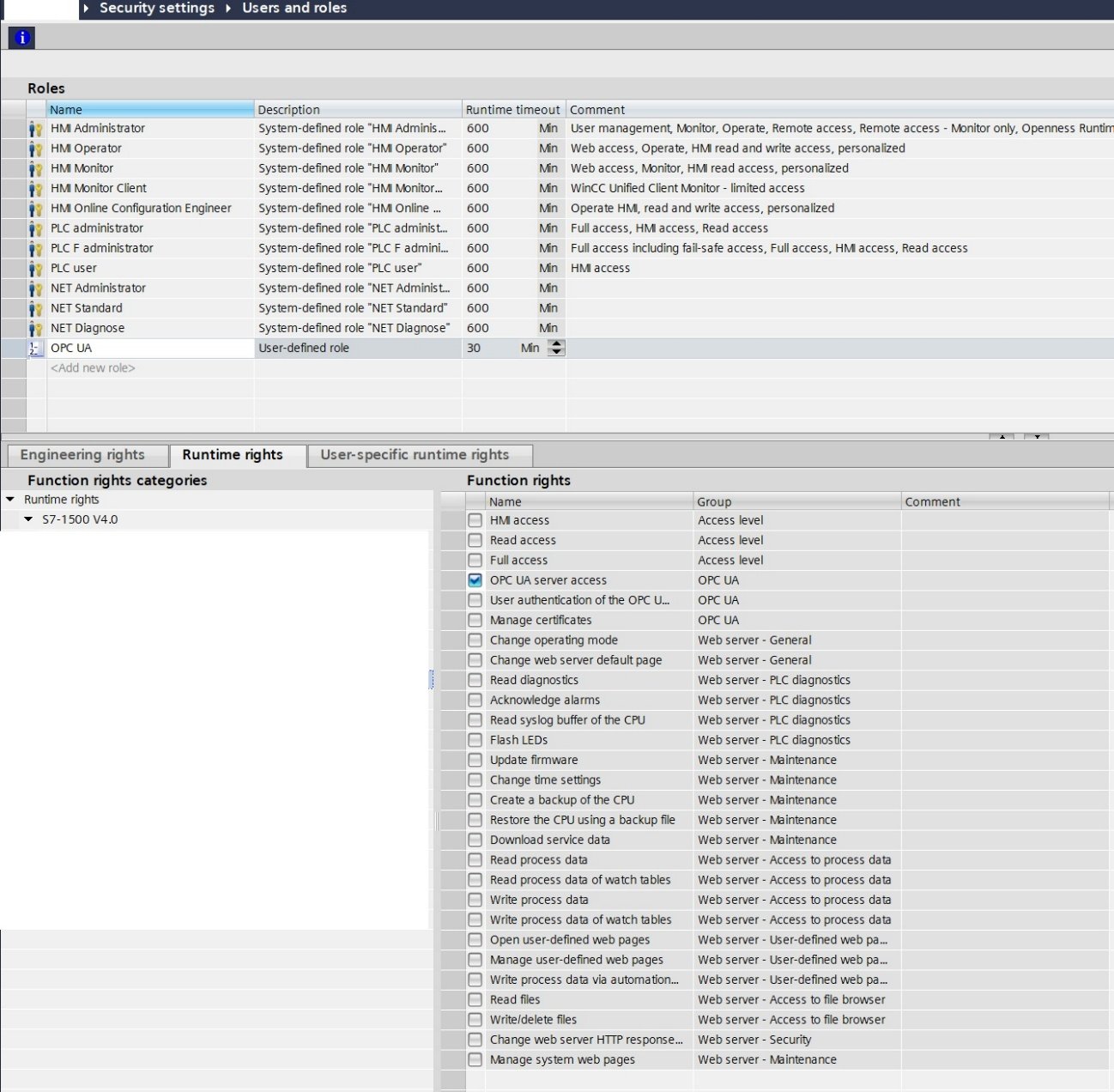
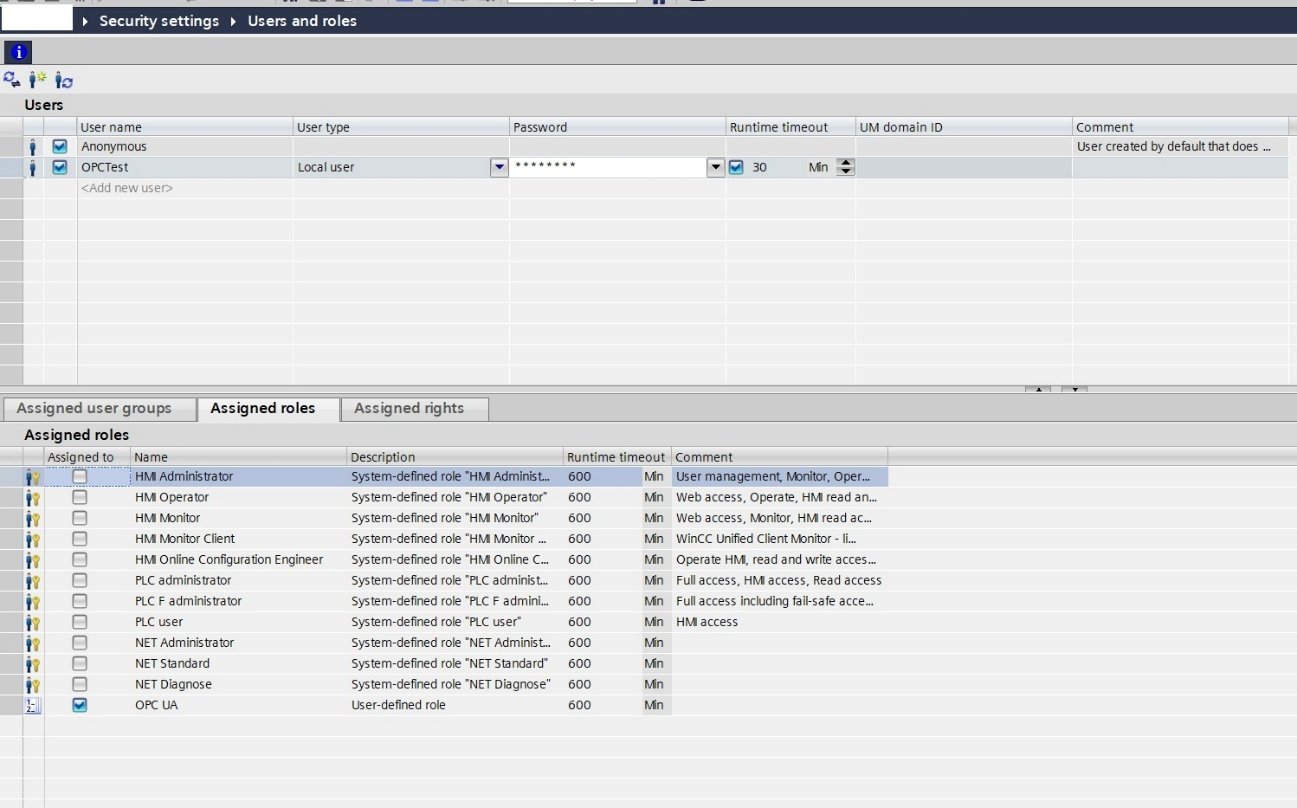
Permission to access the server and permission to read a node are separate controls. Apply the minimum required permissions and check both. In older versions, user management may be located in the OPC UA server’s authentication settings.
05 · Select the licence and download
Under Properties → General → Runtime licenses → OPC UA, check Type of required license and select your purchased licence under Type of purchased license. The CPU 1516 in this example requires Medium. The category depends on the CPU model, rather than the number of published variables. Selecting a licence in TIA Portal does not purchase it.
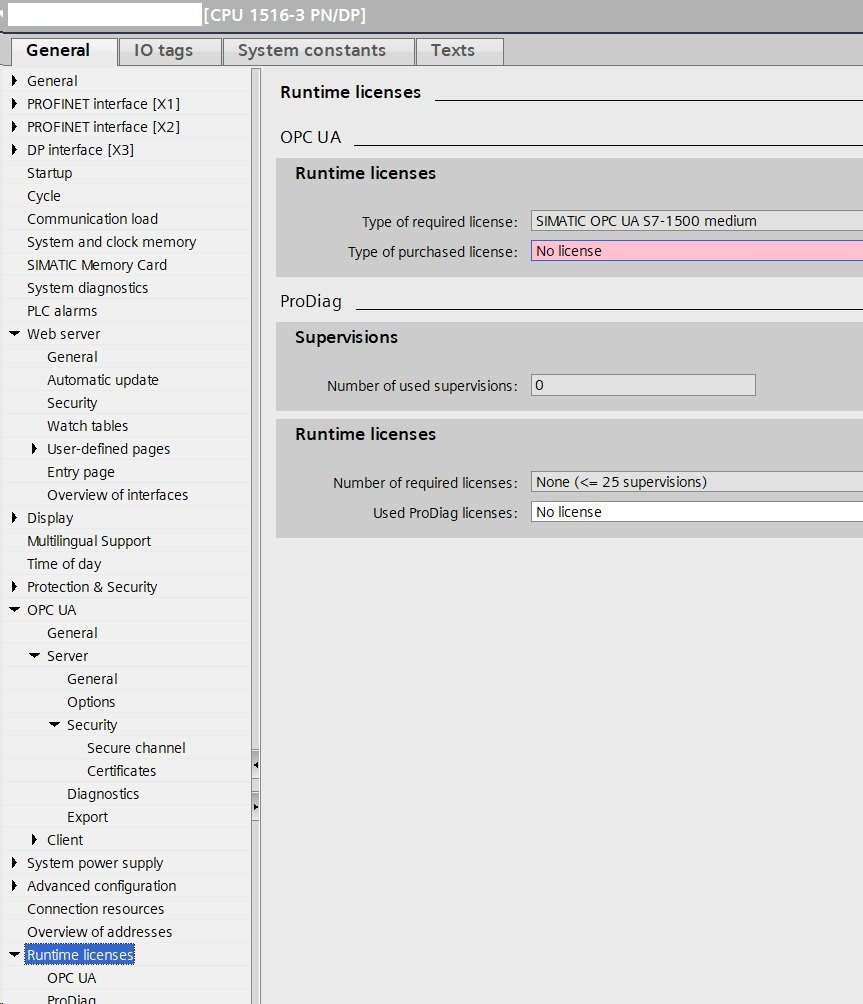
Compile hardware and software, review the messages and download the configuration to the CPU during an appropriate maintenance window. Check the diagnostics if the server does not start.
06 · Create and publish TestOPCUA
Create a global DB called TestOPCUA and assign number 100 if it is available. Add these variables:
| Name | TIA Portal type | Example start value |
|---|---|---|
| Bool1 | Bool | TRUE |
| Integer1 | Int | 123 |
| Real1 | Real | 12.5 |
In the DB properties, enable DB accessible from OPC UA. For all three variables, select Accessible from HMI/OPC UA and clear Writable from HMI/OPC UA: this example only reads data. Visible in HMI engineering does not replace OPC UA access permission.
If you use a user-defined server interface, include these variables and their permissions in it. Compile and download the DB. You do not need to disable optimized block access to use OPC UA.
Check the actual values online. Start values do not always replace actual values when downloading an existing DB. In a test DB, you can set known values using a watch table, after checking that the program does not overwrite them.
07 · Install Python and prepare the folder
Download Python from the official Windows page. Use Python 3.12 or 3.13. With the install manager, install one of these versions; with the traditional installer, select Add python.exe to PATH. Open a new PowerShell window and check:
py -3.13 --versionThe commands below assume Python 3.13. If you installed 3.12, replace -3.13 with -3.12. Create a folder and a virtual environment, which keeps this project’s libraries separate:
mkdir "$HOME\Documents\opcua-siemens"
cd "$HOME\Documents\opcua-siemens"
py -3.13 -m venv .venv
.\.venv\Scripts\python.exe -m pip install --upgrade pip
.\.venv\Scripts\python.exe -m pip install asyncua
We will run the environment’s Python directly, so there is no need to activate scripts or change PowerShell’s execution policy. asyncua provides the OPC UA client.
08 · Prepare the reading script
Download the file into Documents/opcua-siemens, alongside the .venv environment. In Notepad, choose “All files” and make sure the name does not end in .py.txt. No certificate folder is required.
09 · Read the three variables with Python
Download leer_plc.py into the same folder. Before running it, the structure should be:
opcua-siemens/
  .venv/
  leer_plc.py
The script searches for the DB by its BrowseName and obtains its child nodes. It does not assume namespace 3 or invent identifiers from DB100: the NodeId is the OPC UA identifier and must be obtained from the server.
import asyncio
import getpass
import os
from asyncua import Client, ua

async def find_db(start):
    # BrowseName and NodeId differ. Search without assuming a namespace.
    pending = [(start, 0)]
    visited = set()
    matches = []
    while pending:
        node, depth = pending.pop()
        identity = node.nodeid.to_string()
        if identity in visited:
            continue
        visited.add(identity)
        if len(visited) > 2000:
            raise RuntimeError("Browsing is too broad. Use the DB NodeId.")
        name = await node.read_browse_name()
        if name.Name == "TestOPCUA":
            matches.append(node)
            continue
        if depth < 8 and await node.read_node_class() == ua.NodeClass.Object:
            pending.extend((child, depth + 1) for child in await node.get_children())
    if len(matches) != 1:
        raise RuntimeError(f"Found {len(matches)} TestOPCUA DBs. Check permissions or use OPCUA_DB_NODEID.")
    return matches[0]

async def main():
    endpoint = os.environ["OPCUA_ENDPOINT"]
    username = input("OPC UA user (e.g. OPCTest): ").strip()
    password = getpass.getpass("Password: ")
    client = Client(url=endpoint, timeout=10)
    client.application_uri = "urn:rosanestech:python:opcua"
    client.set_user(username)
    client.set_password(password)
    async with client:
        configured = os.getenv("OPCUA_DB_NODEID")
        db = client.get_node(configured) if configured else await find_db(client.nodes.objects)
        children = {}
        for child in await db.get_children():
            name = await child.read_browse_name()
            children[name.Name] = child
        names = ("Bool1", "Integer1", "Real1")
        missing = set(names) - children.keys()
        if missing:
            raise RuntimeError(f"Variables not visible: {sorted(missing)}")
        for name in names:
            print(f"{name}: {children[name].nodeid.to_string()}")
        print("Reading every second. Press Ctrl+C to stop.")
        while True:
            values = []
            for name in names:
                data = await children[name].read_data_value()
                data.StatusCode.check()
                values.append(f"{name} = {data.Value.Value!r}")
            print(" | ".join(values))
            await asyncio.sleep(1)

if __name__ == "__main__":
    try:
        asyncio.run(main())
    except KeyboardInterrupt:
        print("Reading finished.")
    except Exception as error:
        raise SystemExit(f"Could not read the PLC: {error}")
In PowerShell, inside the tutorial folder, set your actual endpoint and run:
$env:OPCUA_ENDPOINT = "opc.tcp://192.168.0.10:4840"
.\.venv\Scripts\python.exe leer_plc.py
Enter OPCTest and its password when prompted. The password is neither displayed nor saved to the file. With correct networking, endpoint settings and permissions, you will see the actual NodeIds followed by output like this:
Reading every second. Press Ctrl+C to stop.
Bool1 = True | Integer1 = 123 | Real1 = 12.5
Bool1 = True | Integer1 = 123 | Real1 = 12.5
This output is illustrative: readings will reflect the PLC’s actual values. Python shows a Bool as True or False, an Int as an integer and a Real as a floating-point number, which may show small representation differences.
Change a variable in the test DB using TIA Portal and check the next reading. Press Ctrl+C to close the session. The three reads are consecutive; they do not form an atomic snapshot of the PLC cycle.
If the server exposes many objects, the DB has a different BrowseName or no unique match is found, look up the DB NodeId using an OPC UA diagnostic client and set it before running:
$env:OPCUA_DB_NODEID = 'PASTE_THE_ACTUAL_DB_NODEID_HERE'Replace the example placeholder with the actual DB NodeId. Automatic browsing is limited to 8 levels and 2,000 nodes. Remove the manual override with Remove-Item Env:OPCUA_DB_NODEID to return to automatic browsing.
10 · Troubleshoot common errors
| Symptom | What to check |
|---|---|
| py is not recognized | Close and reopen PowerShell. Check the Python installation and launcher. |
| No module named asyncua | Install the library using the same .venv\Scripts\python.exe that runs the program. |
| Timeout or connection refused | IP address, port, network route, enabled server and downloaded configuration. Try Test-NetConnection. |
| BadSecurityPolicyRejected | No security / None: Check that the None endpoint offers username/password authentication and that both credentials are correct. The token policy may protect the password separately. If another configuration is required, use a secure channel; do not force plaintext credentials. |
| BadIdentityTokenRejected / UserTokenPolicy | Check that the None endpoint offers username/password authentication and that both credentials are correct. The token policy may protect the password separately. If another configuration is required, use a secure channel; do not force plaintext credentials. |
| BadUserAccessDenied / BadIdentityTokenRejected | Username, password, access role and node read permissions. |
| DB not found or variables missing | Exact name, DB and variable OPC UA access, published interface and software download. |
| Values do not change | Actual online values, correct CPU and DB, and program logic that may overwrite them. |
Test-NetConnection 192.168.0.10 -Port 4840TcpTestSucceeded: True only confirms access to the TCP port. You still need to validate the OPC UA session and permissions.
11 · After the first reading
You now have the complete path: variables published on the S7-1500, an unencrypted laboratory channel, an authorized user and a Python client reading the values. From here you can store historical data, generate reports or use subscriptions when you need a different acquisition strategy.
This example is a learning tool. For a continuously running service, add reconnection with backoff, error logging, quality and timestamp handling, secret management and certificate renewal. The PLC must continue controlling the machine even if the PC disconnects.
Want to integrate data from your installation? Let’s talk ↗For an industrial installation
Configure Sign & Encrypt using a current compatible policy, server and client certificates, trust validation and minimum permissions, while retaining user authentication. After verifying the secure channel, disable No security. Adding certificates is insufficient if the unsecured endpoint remains available.
Further documentation
The screenshots come from the original Rosanes Tech tutorial. To adapt the steps to your version, consult the official documentation: